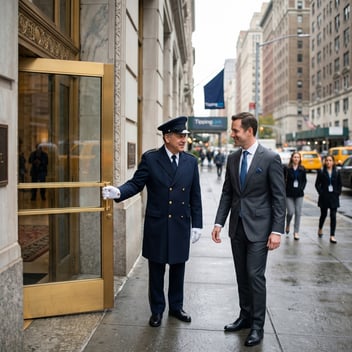
Enabling TippingLink gives residents a way to tip digitally. They still need to know the option exists.
TippingLink is part of BuildingLink, so once you invite your staff, digital tipping is live in your residents' app and portal. But a resident who rarely opens the portal won't find it on their own, and the holidays are the biggest tipping moment of the year, so you’ll want to make sure they are ready.
The holiday cash envelope isn't the default it used to be, either. Cards made up two-thirds of consumer payments in 2025, according to the Federal Reserve's 2026 Diary of Consumer Payment Choice.
So the job is to educate residents early and in multiple places. The plan is short: a staff list in common areas, a QR code on the lobby screen, a flyer in the elevator, one email or text in early November, and a reminder before the holidays. The staff list, QR code, and flyer are easy to download within TippingLink. An email and text template is also available in TippingLink, or you can paste the email and text copy below.
Want to make it even easier? Opt in to have TippingLink do the heavy lifting for you by sending the email and text templates directly to your residents. Texts should only go to residents who have agreed to receive them. Opt in here.
Start Digital Tipping Outreach in Early November
TippingLink recommends starting holiday communications in early November: send one email or text to set expectations, post flyers in common areas, then send a reminder as the holidays get closer.
Before that first email or text goes out, your Security Officer must accept the terms and conditions to enable TippingLink, then invite your staff. If you don't see TippingLink under the Manage tab or on your Manager Dashboard, contact support@tippinglink.com to have it activated. The TippingLink setup guide walks through each step.
Inviting staff does two things at once. Each person gets an invitation email from TippingLink, and they appear to residents right away, so residents can start tipping. Tips can arrive before someone finishes setting up, and those tips wait for them. Staff can access their tips once they finish setting up their profile.
That makes late October the time to confirm your staff list. Click View Staff on your Manager Dashboard in the TippingLink widget, filter for anyone still marked Invited or Onboarding incomplete, and send a reminder from each profile. While you're there, check that every employee has their own email address, since a shared inbox like maintenance@ can't be added.
The holiday timeline at a glance
|
When |
What to do |
Where it lives in BuildingLink |
|
Late October |
Send reminders to staff who haven't finished setting up their profile. Generate the holiday staff list. Add the TippingLink QR code to your public display. |
Manage tab > TippingLink; Communicate tab > Public Display or Community Display |
|
Early November |
Send the announcement email and text. Post the staff list and the resident flyer in common areas. |
TippingLink widget on the Manager Dashboard, or the Communicate tab |
|
Early to mid December |
Send the reminder email and text before the holidays. |
Same as November |
For the rest of the season's to-do list, from package volume to year-end budgets, see The Condo Manager's Holiday Playbook.
Post the Holiday Staff List
A resident who comes home at 6 p.m. every day knows the evening doorman, but not necessarily the overnight porter or the maintenance tech who fixed their sink in March. A printed staff list puts the whole team in front of them, including the staff who work out of sight.
The resident notification tool builds that list for you. Click Generate PDF at the top of your TippingLink dashboard under Staff List to create a custom staff list flyer, then choose your flyer settings, adjust the text, add or remove employees, and generate the file. The list carries a QR code that takes residents straight to your community's TippingLink page, and you can give it a holiday theme for the season.
TippingLink also has a resident flyer. Click Download flyer in the TippingLink widget on your Manager Dashboard, or go to the Manage tab, select TippingLink, and click Download flyer there. Click Copy Link to send it to whoever handles printing. Both flyers include the QR code, so post them where residents already stop: the mailroom, the package room, and elevator landings.
Add the QR Code to Your Public Display
Elevator landings aren't the only place residents pause. Residents pass the lobby screen every day, so it's a great place for the QR code.
If your screen runs on BuildingLink, add the TippingLink QR code widget. It works on the new public display and on the community display, but not on the classic public display.
For the new public display, go to the Communicate tab, select Public Display, and confirm the new public display is enabled. Click View/Edit Template Appearance, click the + icon on the control bar, and select the BuildingLink TippingLink QR Code widget. It appears in the top left; drag it into place and resize it from the bottom-right corner.
For community display, go to the Communicate tab, select Community Display, and click Customize. Click +Add widget, choose QR code, open the widget settings, select BuildingLink TippingLink, and click Apply. Then drag and resize it as needed.
Leave it up from early November through the end of the holiday season.
Send the Announcement Email and Text
Flyers and the lobby screen reach residents who are in the building. Email and text reach everyone else, including owners who are away for the season.
The TippingLink email template includes a direct link to your community's tipping page. Open it with the Send Email button from the TippingLink widget on your Manager Dashboard, or from the Communicate tab. In Send email - classic, click Use Email Template, then choose Suggested Templates (by BuildingLink), English Templates, BuildingLink Website & Database, and Tip Staff with Just a Click. In Send email, click Compose, then Template, then Use an email template, and pick the TippingLink Template. From there, customize the text, select recipients, and send.
For texts, BuildingLink communities also have an SMS tool for sending residents the link. It runs in the same place you already manage resident communications. Only send texts to residents who have agreed to receive text messages from your property.
If you need the link on its own, go to the Manage tab, select TippingLink, and click Preview TippingLink. Copy the URL from your browser's address bar and use it anywhere you like.
Email and Text Templates You Can Paste
Swap in the bracketed details and paste these into the email template or the SMS tool. Keep the fee and payment lines as written, since they match how TippingLink describes checkout.
|
Announcement email (early November) |
|
Subject: A new way to thank the [Community Name] staff this season |
|
Hi neighbors, As the holidays approach, we want to make it easy to thank the staff who keep [Community Name] running. This year, you can tip our team through TippingLink from your phone or computer. Open [TippingLink link], choose the staff members you'd like to thank, enter your name and unit, and add a note if you like. You'll also find TippingLink in the BuildingLink resident app and portal. You can pay by credit card or ACH bank transfer. Building staff receive 100% of their tips when they transfer them to their bank account, which is fee-free. A TippingLink fee is added to your payment and shown at checkout before you pay. Management isn't shown individual tip details for specific staff members. [Optional, if you run a holiday tip pool:] You can also give to the [Tip Pool Name], which is shared among the team. If your property uses a tip pool to collect tips and disburse them to staff members, management may have visibility into who contributed, tip amounts, and disbursements to staff members. Cash and holiday cards are still welcome. TippingLink adds one more way to give. If you're not sure how much to give, this guide to tipping building staff can help. Look for the staff list with a QR code in the [mailroom / lobby], and reach out to the management office with any questions. Thank you, [Name], [Title] |
|
Reminder email (early to mid December) |
|
Subject: A reminder to thank the [Community Name] staff before the holidays |
|
Hi neighbors, This is a quick reminder that you can tip the [Community Name] staff through TippingLink at [TippingLink link]. You can also scan the QR code on the staff list in the [location] or on the lobby screen. You can pay by credit card or ACH bank transfer, and the TippingLink fee is shown at checkout before you pay. Staff may send you a thank-you note through TippingLink after you tip, and your email address isn't shared with them. Thank you for everything you do to recognize our team. [Name], [Title] |
|
Announcement text (early November) |
|
[Community Name]: You can now tip our staff for the holidays through TippingLink. Choose staff and add a note here: [link]. The TippingLink fee is shown at checkout before you pay. |
|
Reminder text (early to mid December) |
|
[Community Name]: There's still time to thank our staff before the holidays at [link]. You can pay by credit card or ACH, and the TippingLink fee is shown at checkout. |
If residents come back with questions, our guides What Residents Actually Want to Know About Tipping Property Staff and Holiday Tipping Without the Cash covers TippingLink from their side.
Why the Prep Belongs in October
TippingLink's recommended sequence (an email, flyers, and then a reminder) starts in early November and runs up to the holidays. That sequence only works if staff have finished setting up and the staff list, flyers, and display are ready before the first email lands. Anything left for November falls outside that window.
If TippingLink isn't set up for your community yet, start with TippingLink or connect with a member of our team. There's no cost to the property.